
Paper cutout effect: turn photos into magazine-style cutouts
Learn how to create a cut-out and torn-paper effect on photos, with white border, shadow and texture, and use it in collages and animated videos.
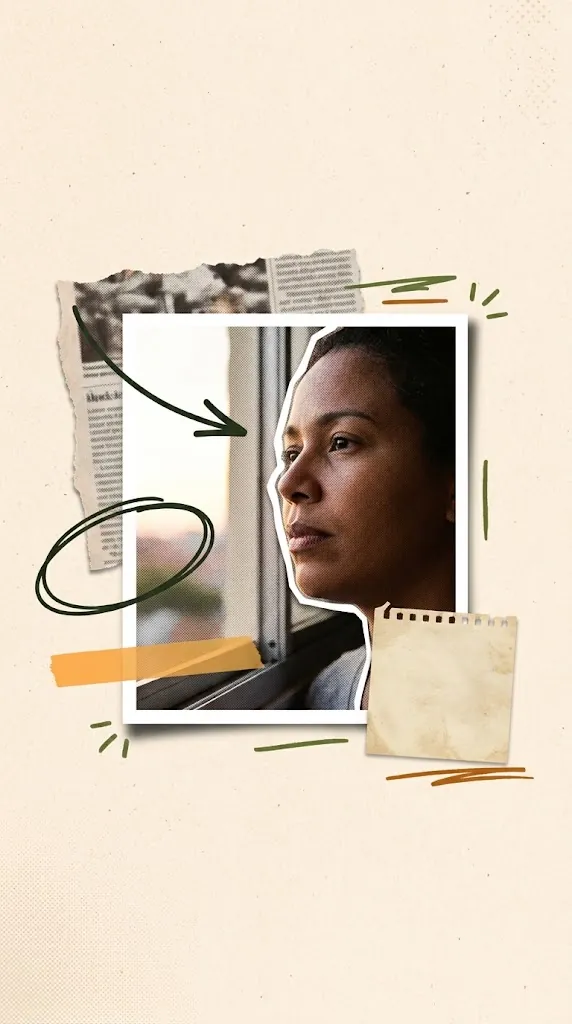
The paper cutout effect turns an ordinary photo into something that looks cut from a magazine with scissors or torn by hand. You see it on YouTube thumbnails, Instagram posts, slide decks and, above all, in animated collages. In this guide you will learn to create the effect in Editor de Vídeo Online, tune the border and take the cutout straight into a video.
What is the paper cutout effect?
It combines three things:
- Background removal, leaving just the person or object.
- A paper border around the cutout: smooth (scissors), torn, perforated or wavy.
- Shadow and texture, which make it feel like real paper on a table.
The result looks analog and editorial, and it is everywhere in scrapbook aesthetics and Vox-style collages.
Step by step in Editor de Vídeo Online
Open Editor de Vídeo Online and click the Paper effect tab (“Efeito papel”), next to Vox collage.
1. Upload the photo
Click to upload or drag the image onto the preview. If the photo is already a transparent PNG, Editor de Vídeo Online detects it automatically.
2. Remove the background
There are several ways to remove the background, each for a different situation:
| Method | Needs internet? | When to use it |
|---|---|---|
| Remove with AI | Only the first time (downloads the model) | Any background, most accurate |
| Plain background | No | Photos with a single-color background |
| Auto detect | No | Busy backgrounds like crowds or landscapes |
| Keep background | No | When the whole photo is the cutout |
| Lasso and Quick selection | No | Manual fixes and tricky cases |
For tricky cases, see the guide to lasso and quick selection for precise cutouts. If you only need to remove the background, read how to remove a photo background in the browser.
3. Choose the paper border
- Torn: the classic, with light fibers on the edge.
- Scissors (smooth): a clean magazine cut.
- Perforated: zigzag edges.
- Wavy: more playful.
- No border: just the cutout.
Adjust thickness, irregularity and tear detail, and pick the border color: white, cream, kraft, yellow, pink, blue, black or a custom color.
4. Adjust the shadow
Control intensity and distance. Subtle shadows look more realistic; strong shadows give a lifted-sticker look.
5. Compare before and after
Drag the line on the preview to compare before and after.
What to do with the cutout
- Save PNG: downloads the cutout with a transparent background, ready for posts, thumbnails and slides. See ideas in posts and thumbnails with the paper effect.
- Add to collage: the cutout enters the Vox collage as a new element with the "Unfold" animation. If no collage is open, a new one starts with just that cutout.
Tips for a beautiful cutout
- Choose photos with good lighting and contrast between subject and background.
- Loose hair is the hardest part: use Remove with AI and fix with the Restore brush.
- Thicker borders read better on phone screens.
- Match the border color to the collage palette.
Frequently asked questions
Does the paper effect work offline?
Yes, almost all of it. Only Remove with AI needs internet the first time to download the model; after that it is stored in the browser.
Can I undo a mistake in the cutout?
Yes. Use Ctrl+Z, the Restore brush, or Clear selection to start over. The Reset button wipes everything and restores the default settings.
What is the difference between the scissors and torn borders?
Scissors leaves a smooth, even edge, like a magazine clipping. Torn is irregular and shows paper fibers, for a more handmade feel.
Conclusion
The paper cutout effect is the fastest way to give a photo personality. In Editor de Vídeo Online it goes beyond a still image: the cutout becomes part of an animated collage with one click. Make your cutout now.
Make your animated video now
Editor de Vídeo Online runs in your browser (Chrome or Edge): upload an image, pick a style and record an MP4. Nothing to install.
Try Editor de Vídeo Online →
Editor de Vídeo Online Team
Written by the Editor de Vídeo Online team, the in-browser animation tool for hand-drawn whiteboard videos, Vox-style collages and paper cutout effects.